Plot the show on the script and run it from there.

QPlot is an iPad app for sound and lighting operators, DSMs and directors. Import the script, place your cues on the page with the Pencil, and follow it through the show.

  • SND1
  • SFX1
  • LX1
  • FS1
  • SB

Pre-release, version 0.5.0. Coming to the App Store. iPad with iPadOS 18 or later. Apple Pencil recommended. No account, and nothing leaves the iPad unless you send it.

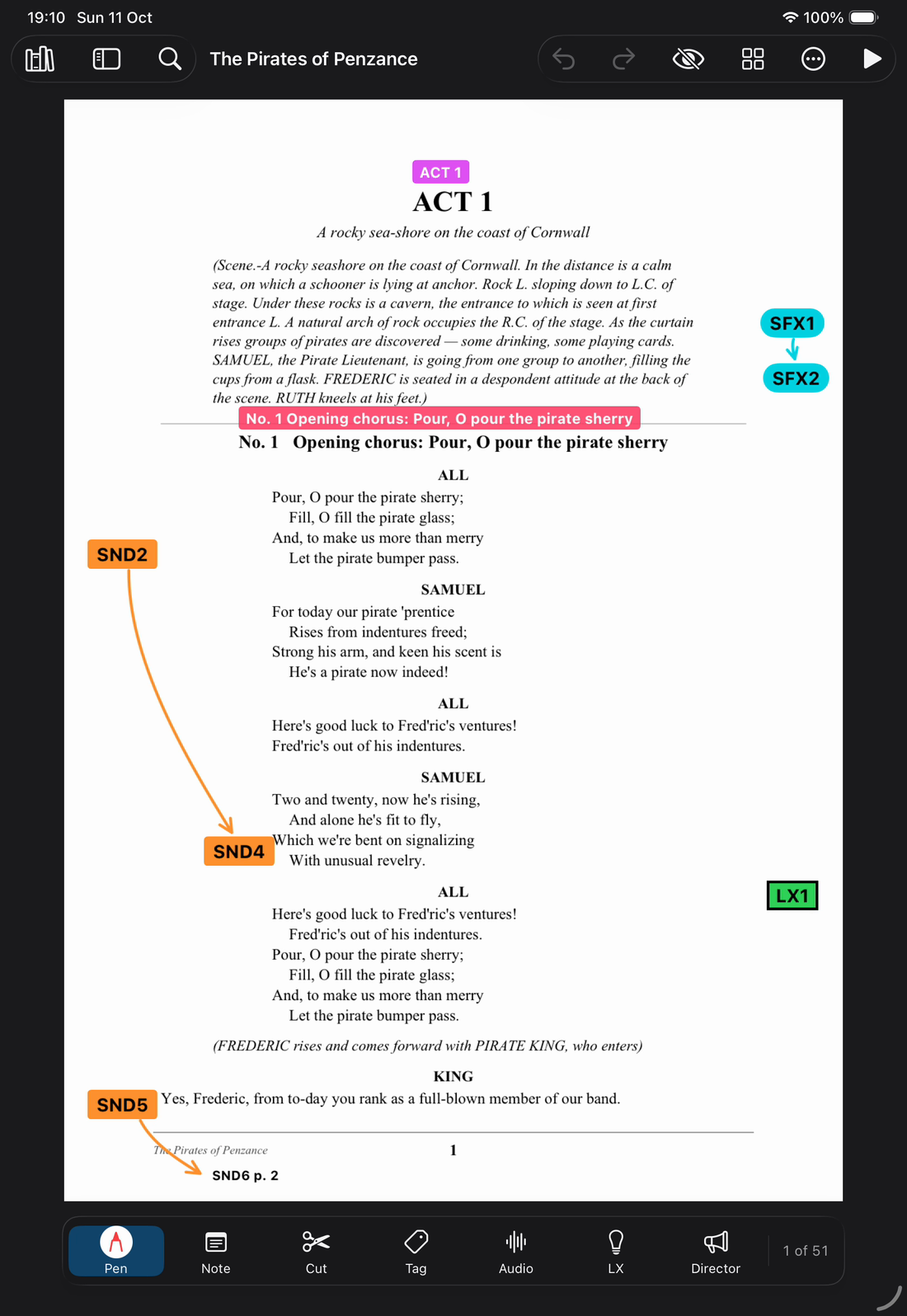
QPlot on an iPad, open at page 1 of The Pirates of Penzance. The page has an Act 1 tag and a song tag. Desk cues SND2, SND4 and SND5 sit in the left margin, with a follow-on arrow from SND2 to SND4. SFX1, SFX2 and LX1 sit in the right margin. The tool bar along the bottom has Pen, Note, Cut, Tag, Audio, LX and Director.

Plot cues

Desk, SFX and LX cues go on the page where they happen. QPlot numbers them in order as you place them.

A cue added between SND12 and SND13 becomes SND12.1. Nothing else is renumbered.

Followspot cues carry pickup, colour, size and level. A follow-on runs from one cue to a later one, drawn as an arrow.
How cues work

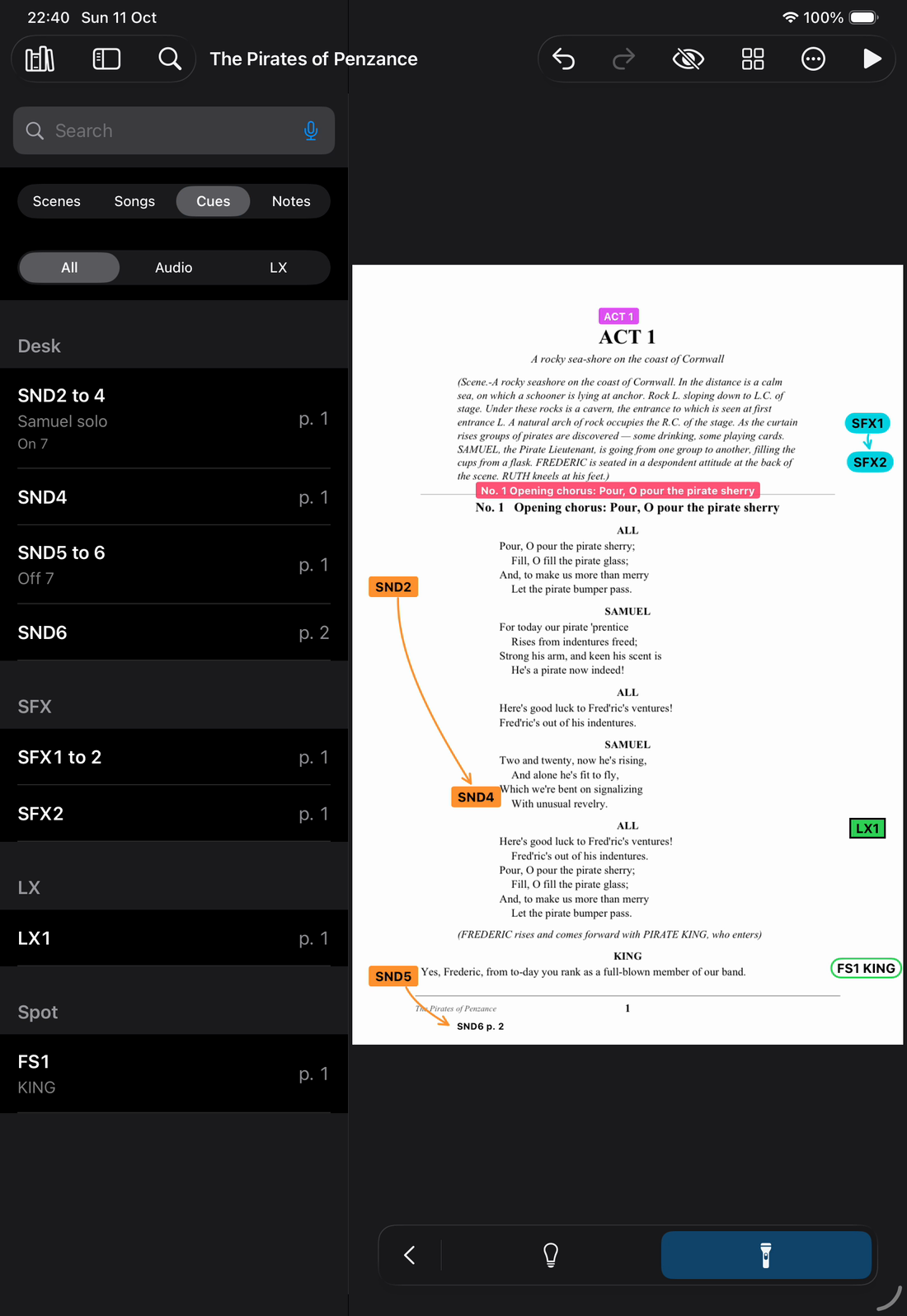
The Cues list in the side panel, grouped into Desk, SFX, LX and Spot. Each row has the cue number and its page, such as SND2 to 4, Samuel solo, page 1. Page 1 of the script sits beside it with the same cues on it.

Notes

In Show mode, tap Note and the Pencil writes on the page in red. QPlot reads the writing. Afterwards the Notes list shows each note with its words, page and song. Tick each one off once it is dealt with.

While plotting, pick Note and tap the page with the Pencil. Write on the paper that opens and a yellow note sits where you tapped.

A director addresses notes to a department and sends them.

How notes work

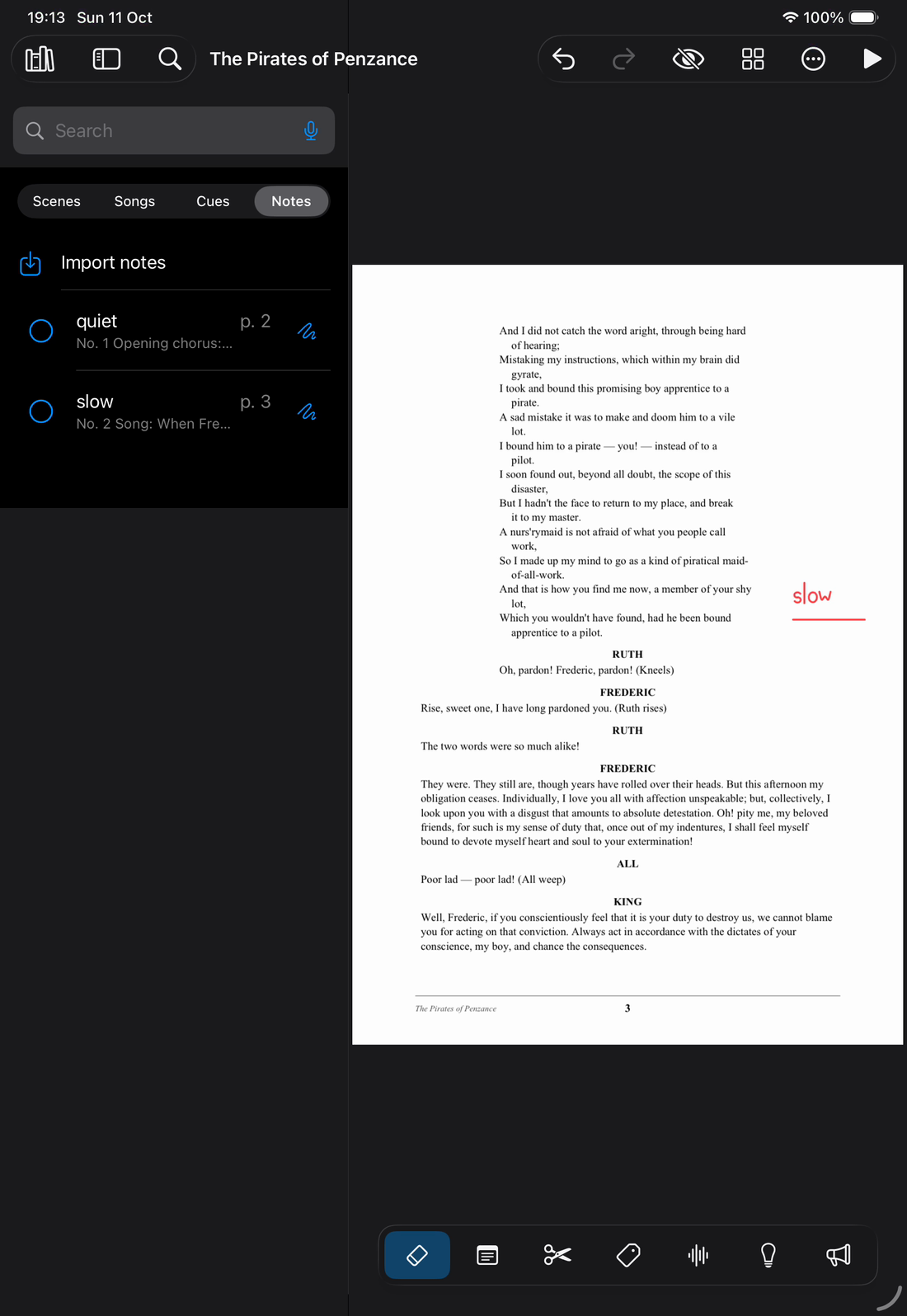
The Notes list in the side panel with two show notes: quiet on page 2 and slow on page 3, each with its song and a circle to tick. On page 3 beside it, the word slow is handwritten and underlined in red in the margin.

Mic plot

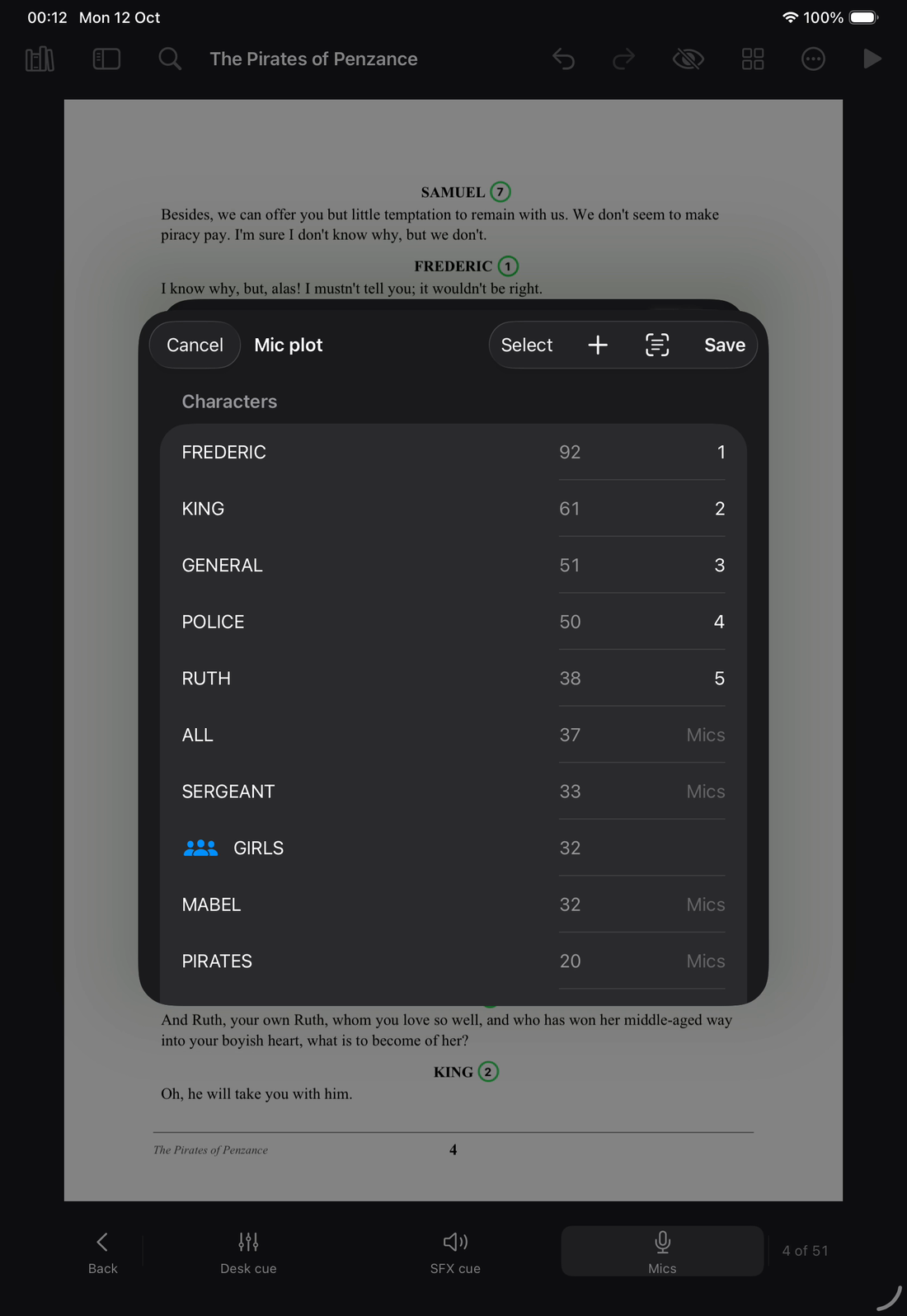
QPlot scans the script for speakers and lists each character with a line count. Type a mic beside each character and the number sits by their name on the page.

The Mics tool covers a name the scan missed. Circle it and every line of that character gets the number.

The mic plot exports as a spreadsheet.

How departments work

The Mic plot sheet open over a script page. It lists each character with a line count and a mic: Frederic 92 lines, mic 1. King 61, mic 2. General 51, mic 3. Police 50, mic 4. Ruth 38, mic 5. All, Sergeant, Mabel and Pirates have no mic yet. On the page behind, a ringed mic number sits after each speaker's name.

Show mode

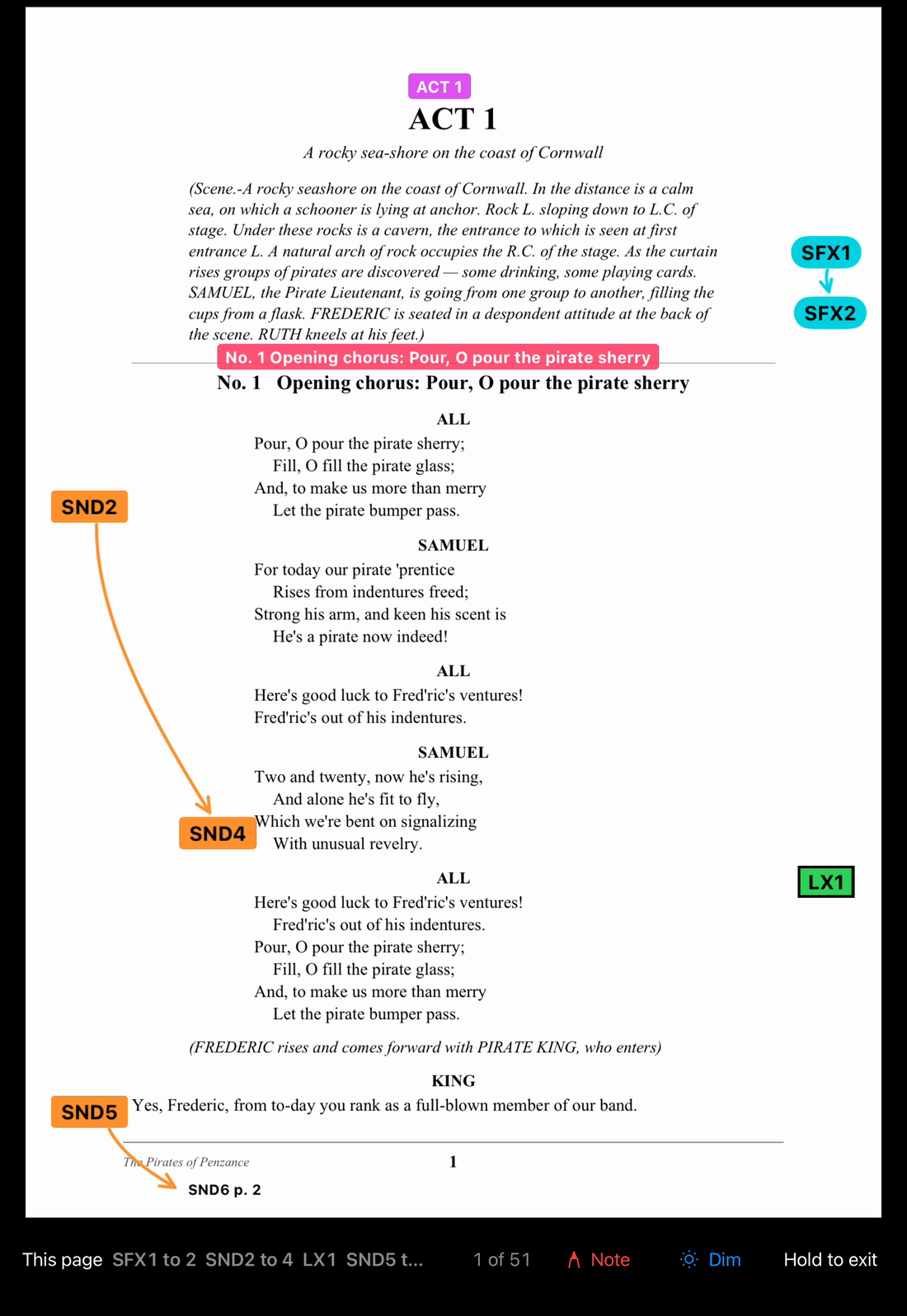
Full screen and locked, so nothing changes by accident. A strip along the bottom shows the cues on this page and the next cue to stand by for.

Turn pages by tapping an edge, swiping, or with a Bluetooth pedal. Half-page turns and a dark page are there if you want them.

How Show mode works

Show mode. Page 1 of the script fills the screen with its cues, and no tool bar. A strip along the bottom reads This page, SFX1 to 2, SND2 to 4, LX1, then 1 of 51, Note, Dim and Hold to exit.

Sharing between departments

Sound, lighting, the DSM and the director each have a layer on the same pages. Send yours as a file to someone with the same script and it replaces their copy of that layer.

A director's notes land at the right pages, with a printed list for anyone without QPlot.

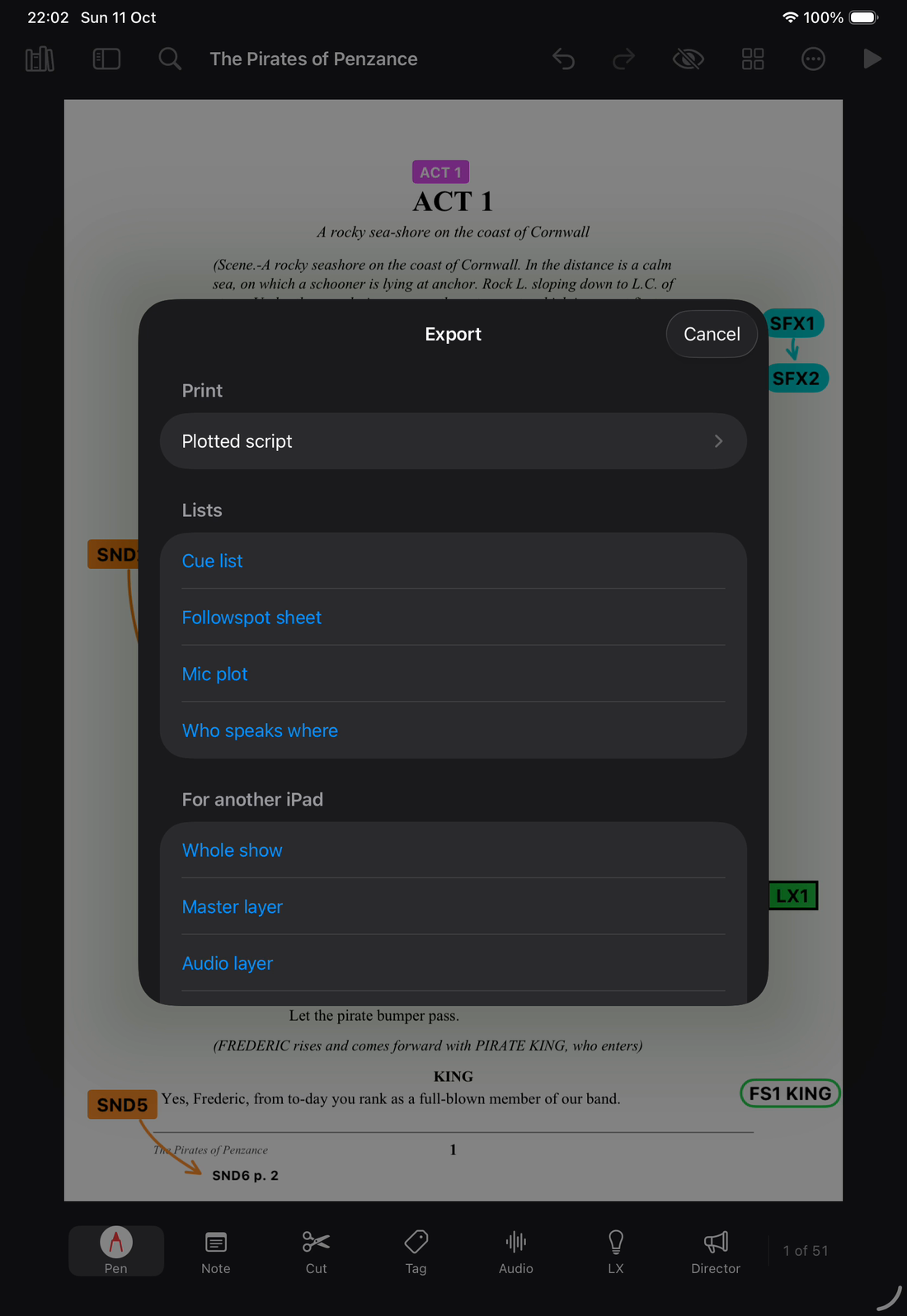
Export the whole show as one file for another iPad. The cue list, followspot sheet and mic plot export as spreadsheets, and the plotted script as a PDF.

How sharing works

The Export sheet open over the script. Under Print: Plotted script. Under Lists: Cue list, Followspot sheet, Mic plot and Who speaks where. Under For another iPad: Whole show, Master layer and Audio layer.

Training videos

Five videos, filmed on version 0.5.0 with a demo script. Each one is also written out in Help.

  1. 1. Getting started

    Importing a script, the page, search, the pen, notes, cuts, tags and settings.

    7 min 30. Captions are on. The captions button in the player turns them off. Read it as text.

  2. 2. Cues

    Placing, numbering, editing and moving cues. Follow-on cues. The Cues list.

    2 min 15. Captions are on. The captions button in the player turns them off. Read it as text.

  3. 3. Show mode

    The strip, turning pages, the dark page and show notes.

    2 min 49. Captions are on. The captions button in the player turns them off. Read it as text.

  4. 4. Departments

    Audio, LX, director and DSM. The mic plot, spot cues, notes for a department and the cue column.

    10 min 22. Captions are on. The captions button in the player turns them off. Read it as text.

  5. 5. Sharing

    Layers, a director's notes, the Export page, the show file, Clear and backing up.

    6 min 51. Captions are on. The captions button in the player turns them off. Read it as text.